
Add/Deduct Module - User Guide
Introduction
The Add/Deduct Module in the HRIS system enables HR teams to manage employee financial adjustments, such as additional allowances and deductions. This module ensures accurate payroll processing by allowing users to create, modify, and track these transactions efficiently.
User Interface Overview
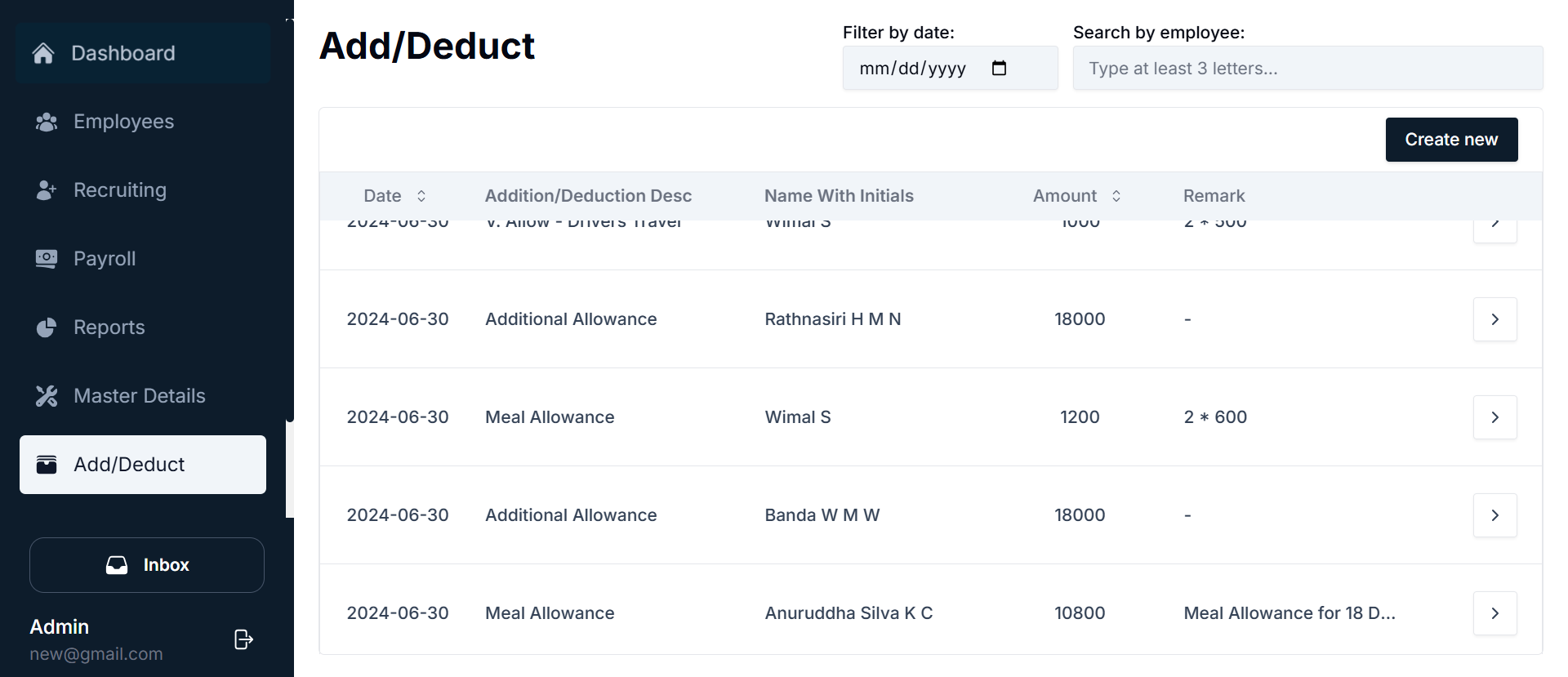
Add/Deduct List
Displays all addition and deduction entries with key details:
- Date: The date of the transaction.
- Addition/Deduction Description: The type of adjustment.
- Name with Initials: Employee's name.
- Amount: The value of the addition/deduction.
- Remark: Any additional comments about the transaction.
- Arrow Button (>): Navigates to the Update Page for modifications.
Search and Filter Options
- Filter by Date: Allows users to select a specific date to view related transactions.
- Search by Employee: Enables searching by entering at least three letters of an employee's name.
Adding a New Record
- Click the Create New button to open the Add New Entry form.
- Enter the required details, including Employee Name, Addition/Deduction Type, Date, Amount, and Remarks.
- Click Create to save the record.
Updating an Existing Entry
- Click the Arrow Button (>) next to a record to open the Update Page.
- Modify the required fields and click Update to save changes.
Searching & Filtering
- Filter by Date: Select a date to view relevant records.
- Search by Employee: Enter at least three letters to find an employee's transactions.
Managing Additions and Deductions
Viewing and Navigating the Add/Deduct List
- Open the Add/Deduct Module from the sidebar.
- The list displays all records with filtering and search options.
- Click the Arrow Button (>) to update an existing record.
- Click Create New to add a new entry.
Creating a New Addition/Deduction Entry

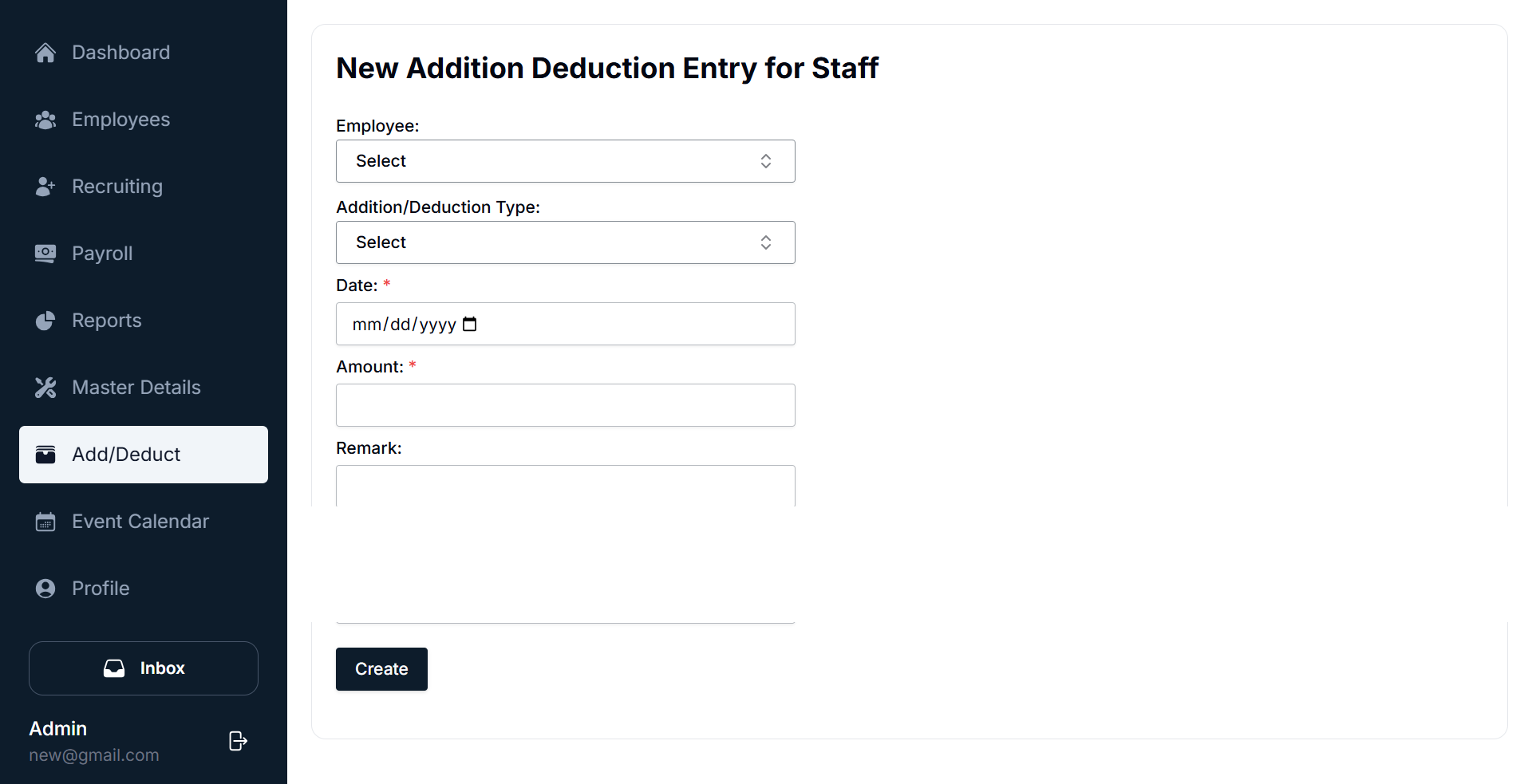
- Click on Create New.
- Fill in the required fields:
- Employee: Select an employee from the dropdown list.
- Addition/Deduction Type: Choose the appropriate category.
- Date: Enter the transaction date.
- Amount: Input the adjustment value.
- Remark: Add any additional notes.
- Click Create to save the entry.
Updating an Existing Entry

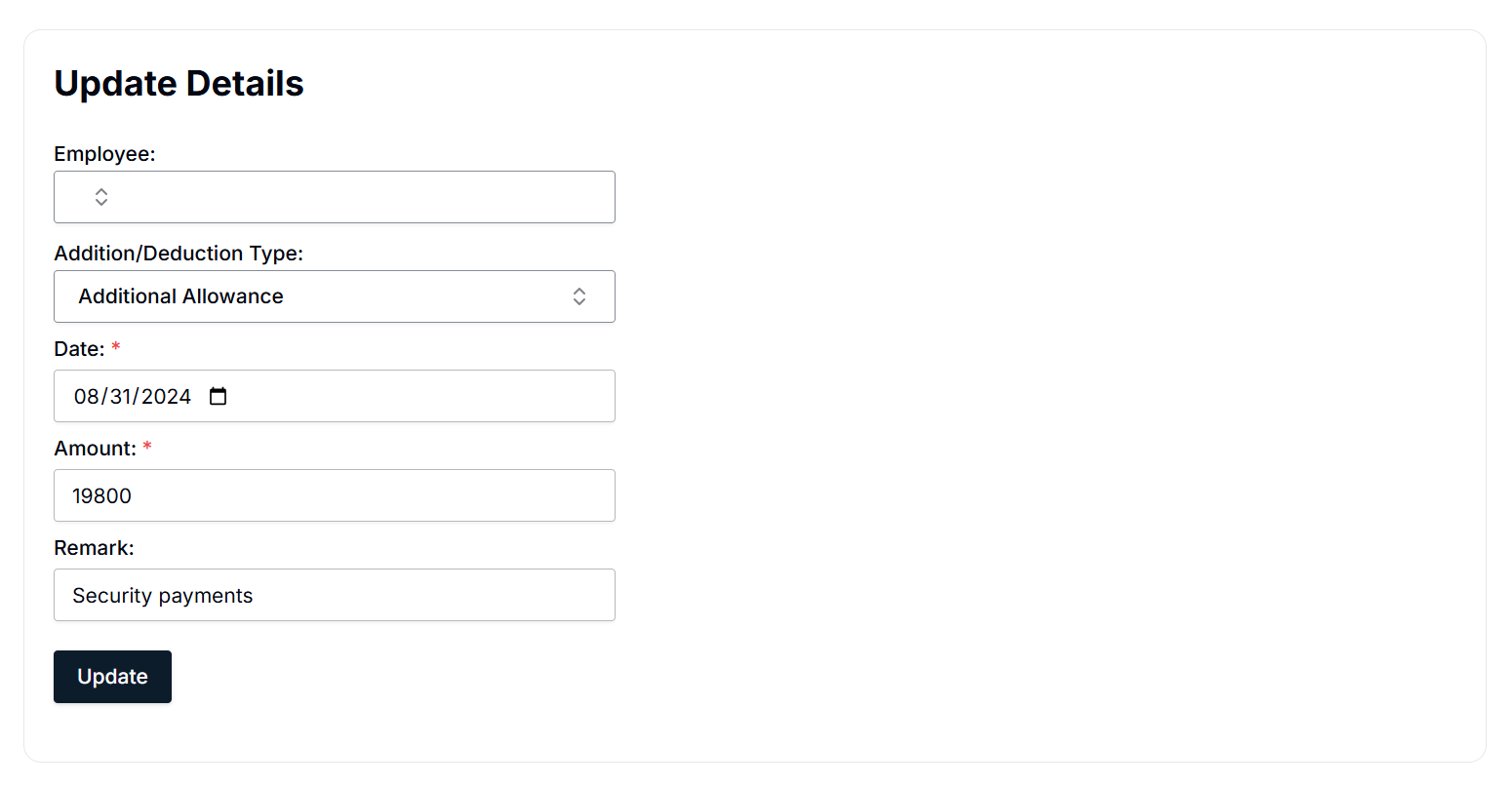
- Locate the record in the Add/Deduct List.
- Click the Arrow Button (>) to open the update page.
- Modify the necessary fields:
- Employee: Select or change the employee if needed.
- Addition/Deduction Type: Modify the adjustment type.
- Date: Update the transaction date.
- Amount: Change the adjustment amount.
- Remark: Edit or add any additional comments.
- Click Update to save changes.
Searching and Filtering Records
Using the Search Bar
- Locate the Search Bar at the top of the Add/Deduct page.
- Enter an employee's name.
- Matching results will be displayed automatically.
Applying Filters
- Click on the Filter by Date field.
- Select the desired date.
- The system updates records accordingly.
Summary
- The Add/Deduct Module facilitates the management of financial adjustments for employees.
- Users can view, search, filter, add, and update records efficiently.
- The system ensures transparency and accuracy in payroll adjustments.
This guide provides a comprehensive walkthrough of the Add/Deduct Module functionalities in the HRIS system.